Q01Are Layout and Storyboard the same thing?
No. Storyboard defines shot content, order and narrative rhythm. Layout defines panel size, position and reading path on the page.
AI COMIC STUDIO FOR SOLO CREATORS
KOMI is an AI comic maker for independent creators. Direct the shots, generate each frame, then finish the page and dialogue.
 01
01 02
02 03Why is it leaning?A little support.
Change an earlier decision without starting the whole page again.
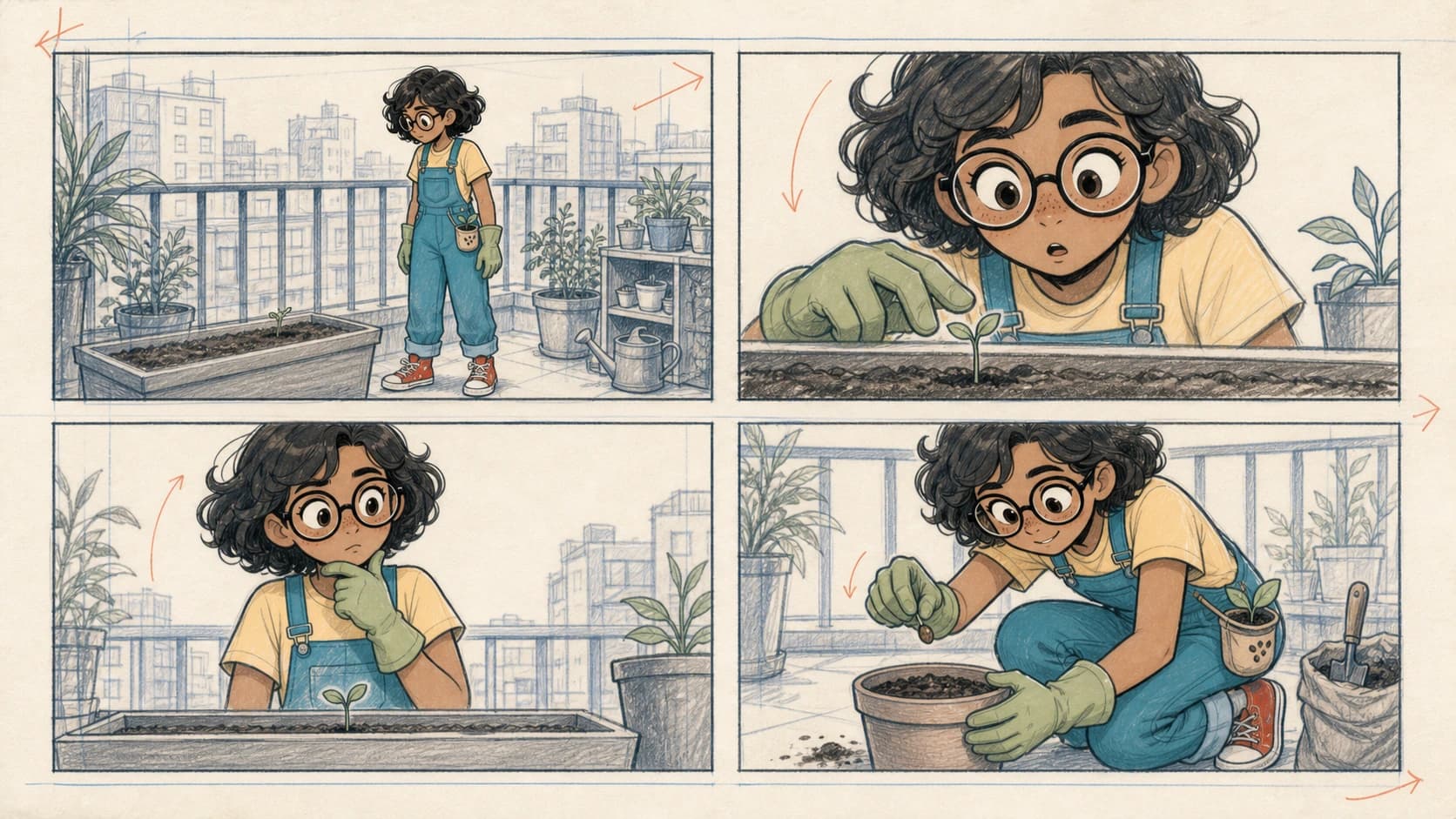
Story to storyboard
KOMI turns a story into adjustable shot drafts. Confirm order, framing and action before image generation.

Frame-by-frame generation
Each frame is generated and versioned separately. If one misses the mark, retry only that frame.
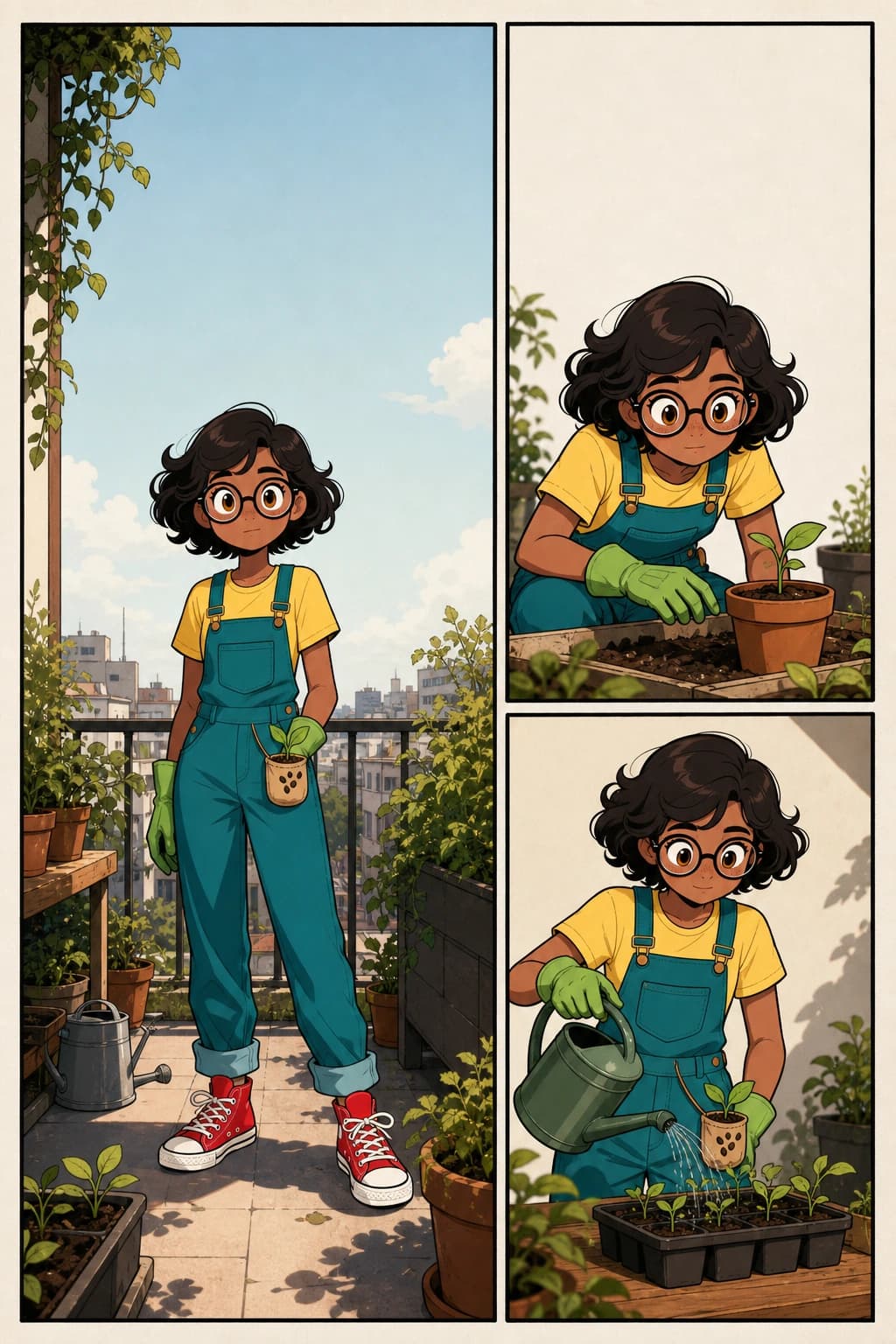
Layout and bubbles
Choose the page rhythm, adjust crops and add editable dialogue. Translate without drawing the image again.
One AI comic workflow
KOMI splits the story into editable shots first. Confirm the storyboard, generate each frame, then compose the page and dialogue without losing the source story.
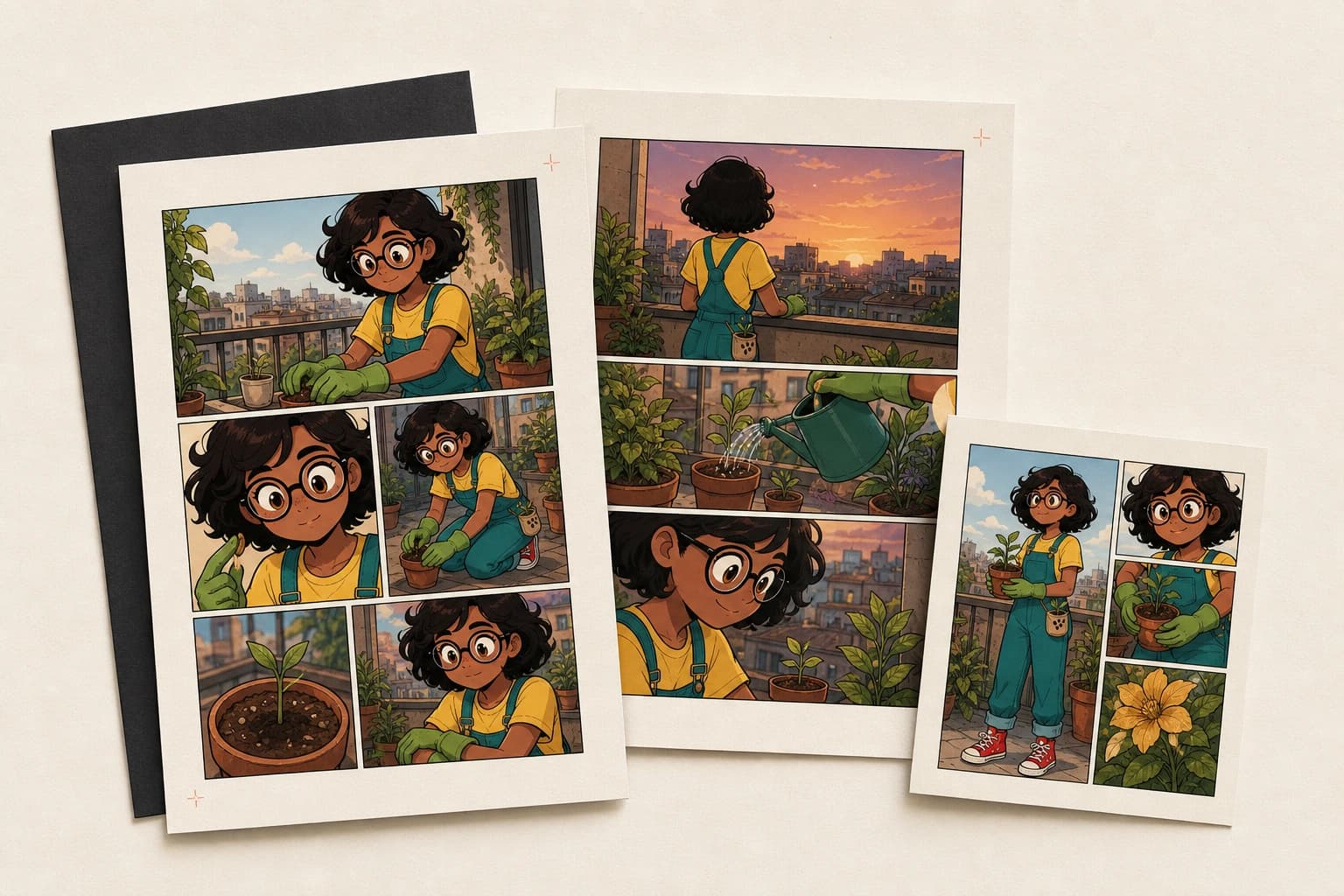
Finish and export
Review the page, then export PDF, CBZ or images. Your source project stays editable for future revisions.
FAQ
The practical questions comic creators ask before choosing a tool.
No. Storyboard defines shot content, order and narrative rhythm. Layout defines panel size, position and reading path on the page.
Yes. Confirm the storyboard first, then generate one frame at a time. Each frame keeps its own versions so you can retry only the frame that needs work.
Not by default. Dialogue, bubble style and position are saved separately, so you can translate, move or reflow them.
The interface supports Chinese, English, Japanese and Korean. Each project can use its own dialogue language.
Yes. After the storyboard is ready, choose an available model for each individual frame.
No. The canvas is an optional place for inpainting, cleanup and detail corrections after generation.
Lock the structure first, then spend generation credits only on frames worth making.